

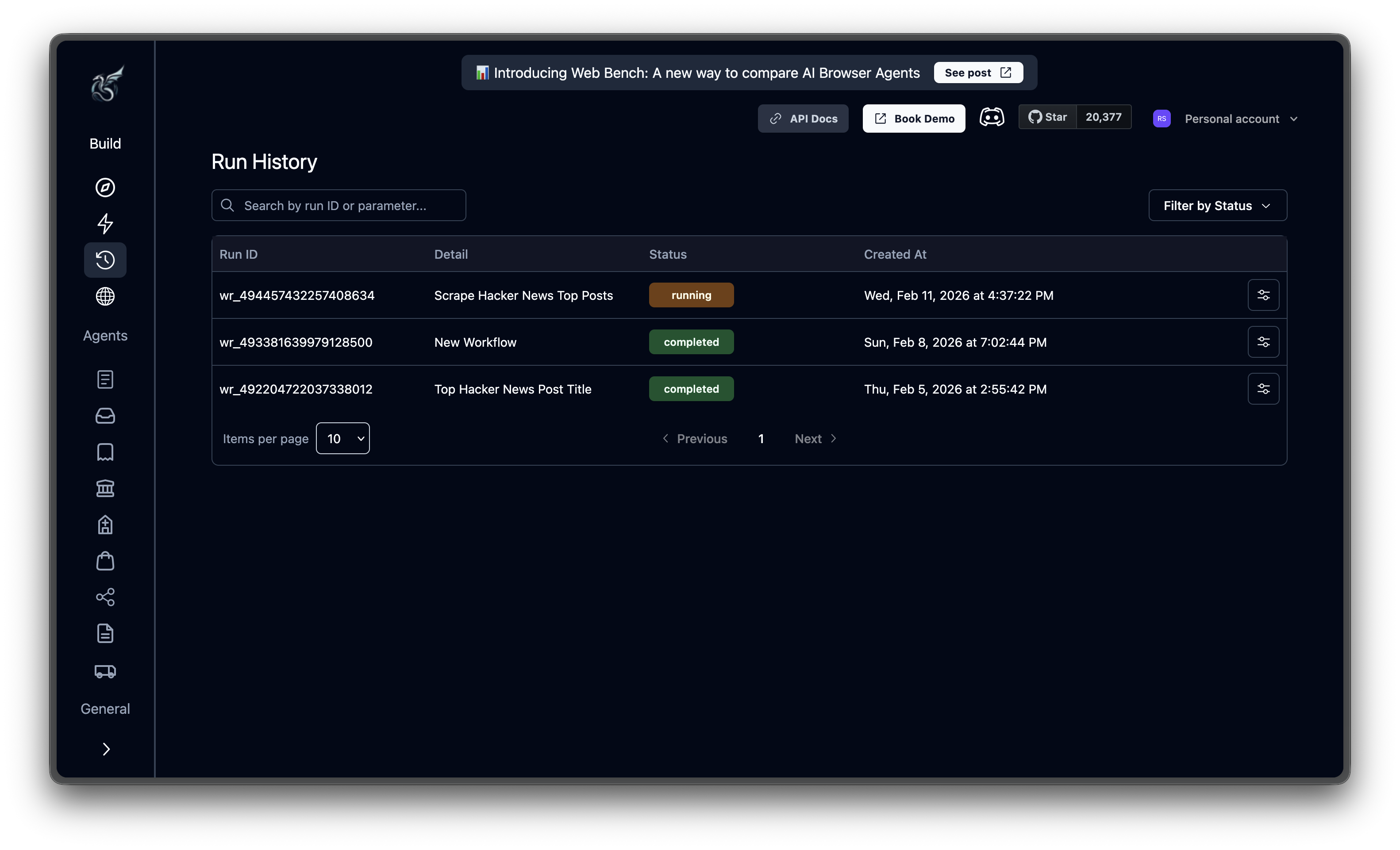
Finding a specific run
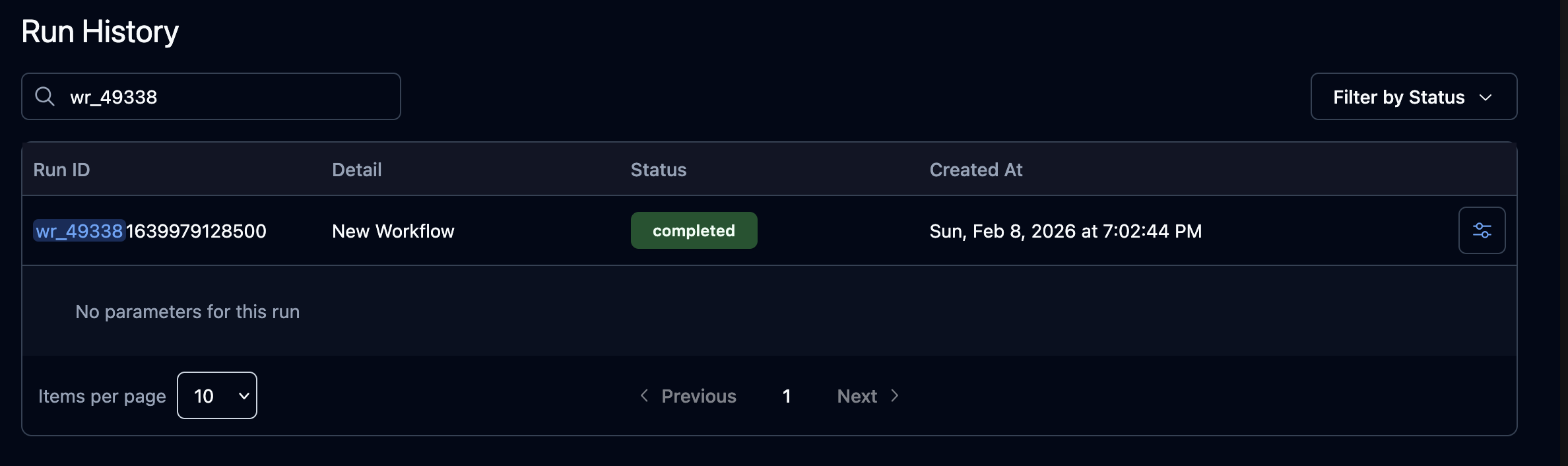
Search narrows the list by run ID or agent parameter value. Type part of an ID (e.g.,wr_49338) or a parameter you passed (like a URL), and matching results appear as you type.
failed and timed_out together show everything that went wrong. Filters and search can be combined: search for a parameter value while filtering to only failed runs.
Available statuses: Created, Queued, Running, Completed, Failed, Terminated, Canceled, Timed Out.
Reading the table
Each row is one run. The columns:
Agent runs have a settings icon in the last column. Click it to expand the row and see the parameters passed to that run. If your search matches something inside the parameters, the row auto-expands so you can see the match in context.
Trigger type
Every run has a trigger type that indicates how it was started:
Scheduled runs display a calendar icon badge next to the run ID. Click the run to see the schedule name and cron expression in the run details.
Filtering by trigger type
Use the Trigger Type dropdown filter to show only runs of a specific type. For example, select Scheduled to see all runs triggered by cron schedules. This filter can be combined with the status filter and search.Opening a run
Click any row to jump to its detail page. Hold Ctrl (or Cmd on Mac) to open in a new tab. Pagination controls at the bottom let you adjust the page size (5, 10, 20, or 50 items) and navigate between pages. Settings are stored in the URL, so you can bookmark a filtered view or share it with a teammate.Run Details
Inspect actions, outputs, recordings, and parameters for any run
Downloading Artifacts
Save recordings, screenshots, and output files