

Step 1: Write your prompt
Open app.skyvern.com and you’ll land on the Discover page.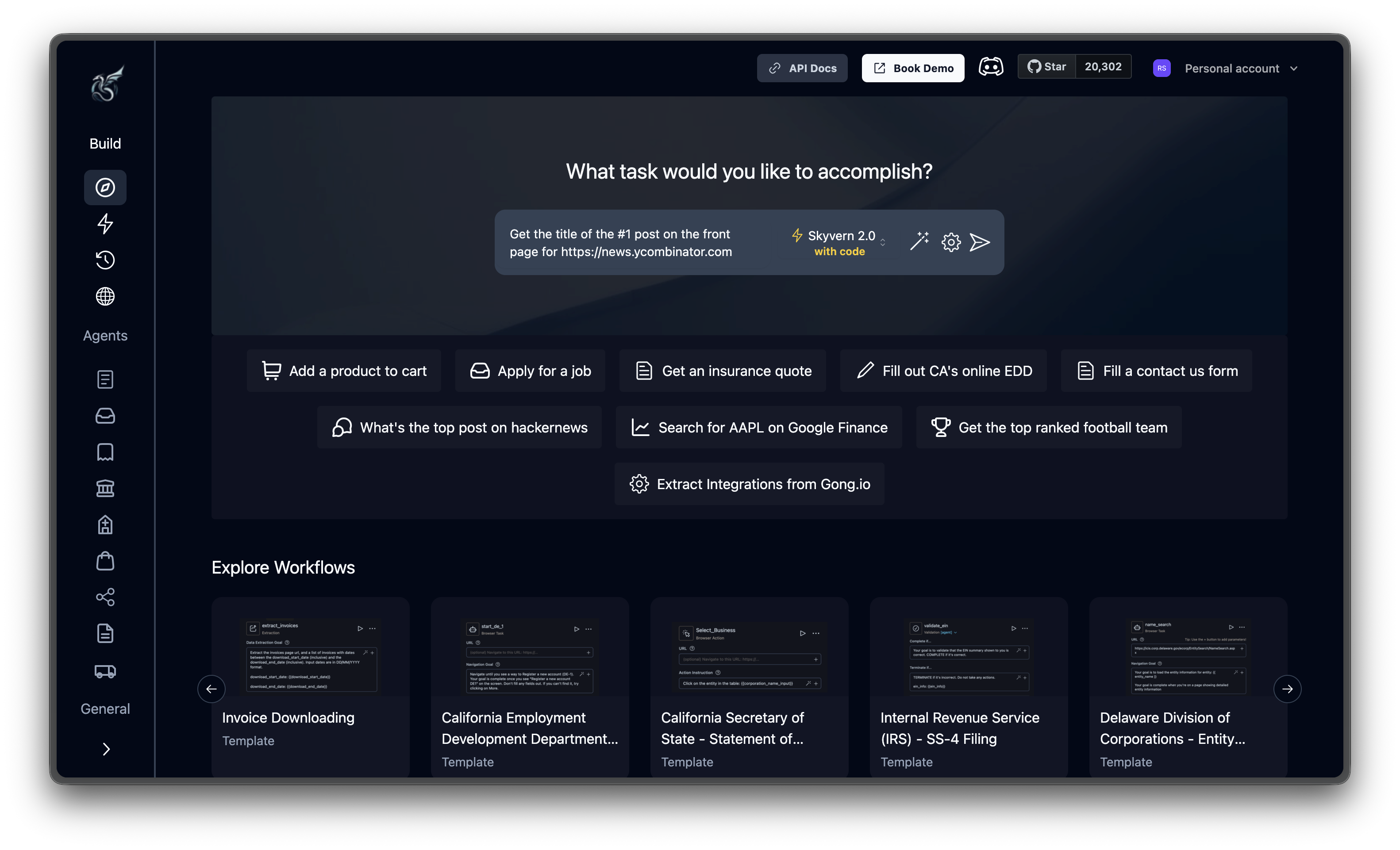
Step 2: Create and run the agent
Click the send button (arrow icon in the bottom-right corner of the input). Skyvern generates an agent from your prompt using the default Skyvern 1.0 task engine and opens it in the agent editor. Click Run in the top right, confirm the parameters, then click Run agent to start execution.Optional: Advanced settings
Optional: Advanced settings
Click the gear icon below the input to configure additional options before running:
These are all optional. The defaults work for most tasks.
Step 3: Watch the live browser
This is where it gets interesting. Once the task starts, you’ll see the run detail page with a live view of the browser: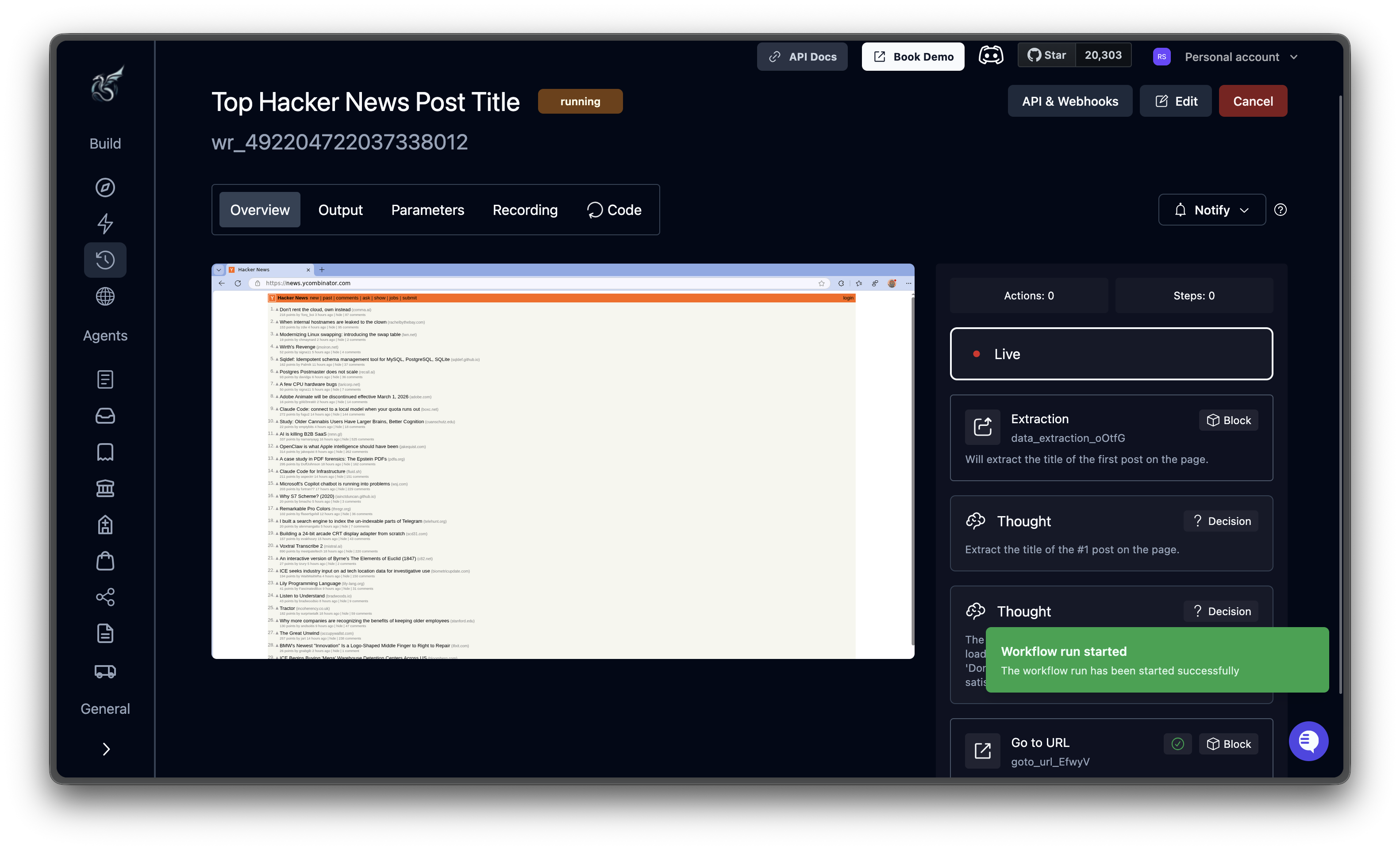
Step 4: Review the results
When the task finishes, the status badge flips to completed and the extracted data appears at the top of the page.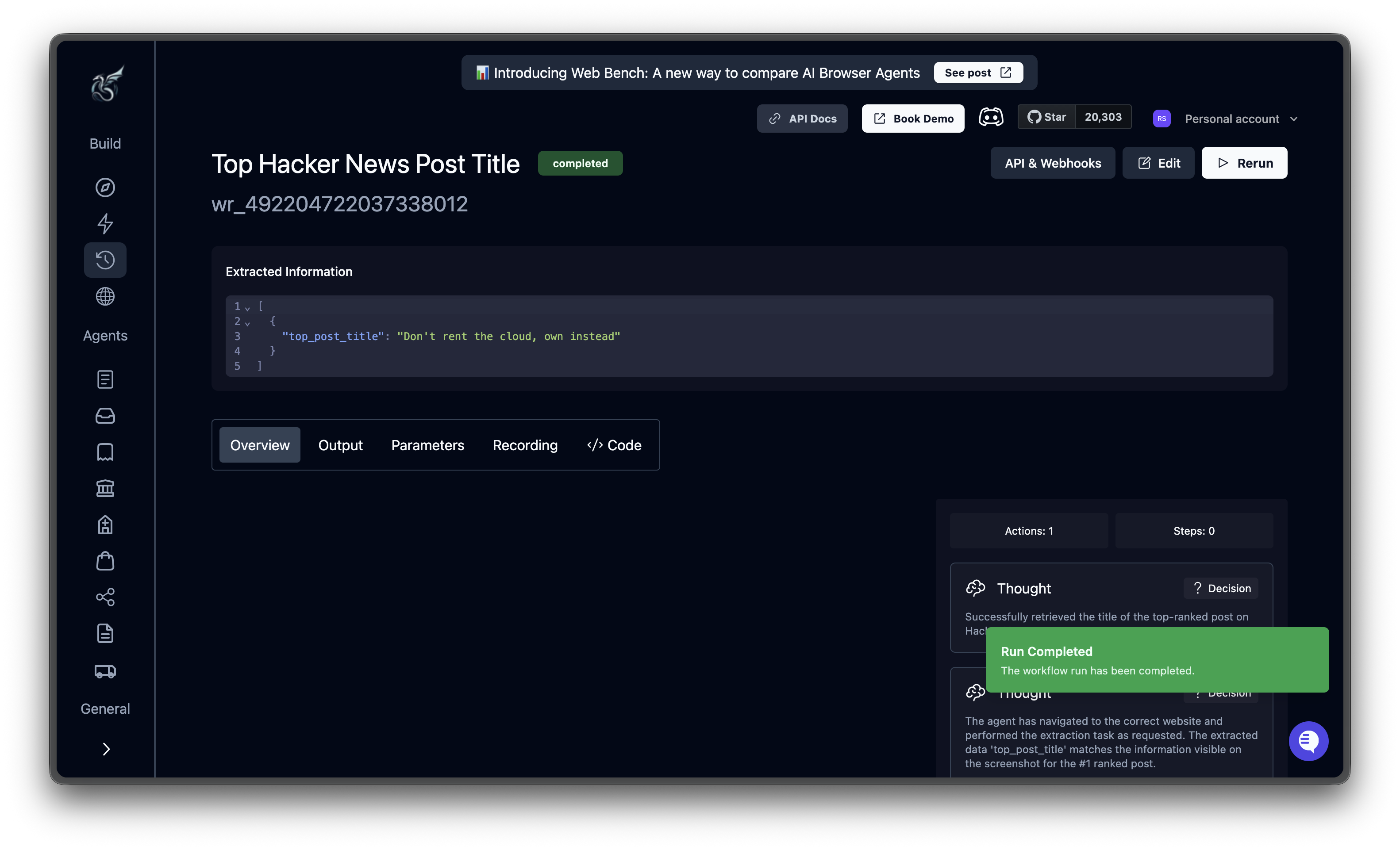
Extracted data
The Extracted Information block shows your results as structured JSON:Tabs
Below the extracted data, five tabs give you different views of the run:- Overview: The AI’s reasoning timeline alongside browser screenshots. Each Thought, Block, and Action card shows what the agent saw and why it acted.
- Output: The complete JSON output and any downloaded files.
- Parameters: The exact configuration that was submitted (URL, prompt, engine, schema). Useful for reproducing or tweaking the run.
- Recording: Full video replay of the browser session, start to finish.
- Code: Auto-generated Python code to reproduce this task via the API or SDK.
Try something bigger
Now that you’ve seen the basic flow, here are a few ideas to try next:- Fill a form: Point Skyvern at a contact form and tell it what to enter in each field
- Compare prices: Extract product names and prices from an e-commerce page using a data schema
- Navigate a flow: Build an agent to walk through a multi-page checkout or signup process
- Use an Agent template: Check the Agents section in the sidebar for pre-built automations you can run instantly
Next steps
Run a Task via API
Trigger automations programmatically with the Skyvern API
Core Concepts
Understand tasks, agents, and other building blocks