

Agents vs. Browser Automation: Agents are defined in this visual editor and run from the Cloud UI (or triggered from code). Browser automations are written in Python/TypeScript using Page, Agent, and Browser. Choose based on whether your team prefers a visual editor or a code editor.
How agents work
An agent is a sequence of blocks that run one after another. Each block does one thing: navigate to a page, extract data, send an email, run custom code, loop, or branch. You connect blocks on a visual canvas, pass data between them, and run the whole chain with one click.How data flows between blocks
Every block produces an output. Downstream blocks reference it using the pattern{{ block_label_output }}.
For example, an Extraction block labeled scrape_listings produces output that later blocks access as {{ scrape_listings_output }}. The label is lowercased with spaces replaced by underscores, then _output is appended. This is how you chain steps together. One block’s output becomes the next block’s input.
Block categories
See Block Reference for every block type and its configuration fields.
Tutorial: Build a job listing tracker
Let’s build a real agent. You’ll create an automation that finds the top 5 job listings from Hacker News’s monthly “Who is Hiring” thread, summarizes each one, and emails you a digest. This uses 5 blocks across 3 categories: browser automation, data and extraction, and communication.1
Create a new agent
Go to Agents in the left sidebar and click Create → Blank Agent.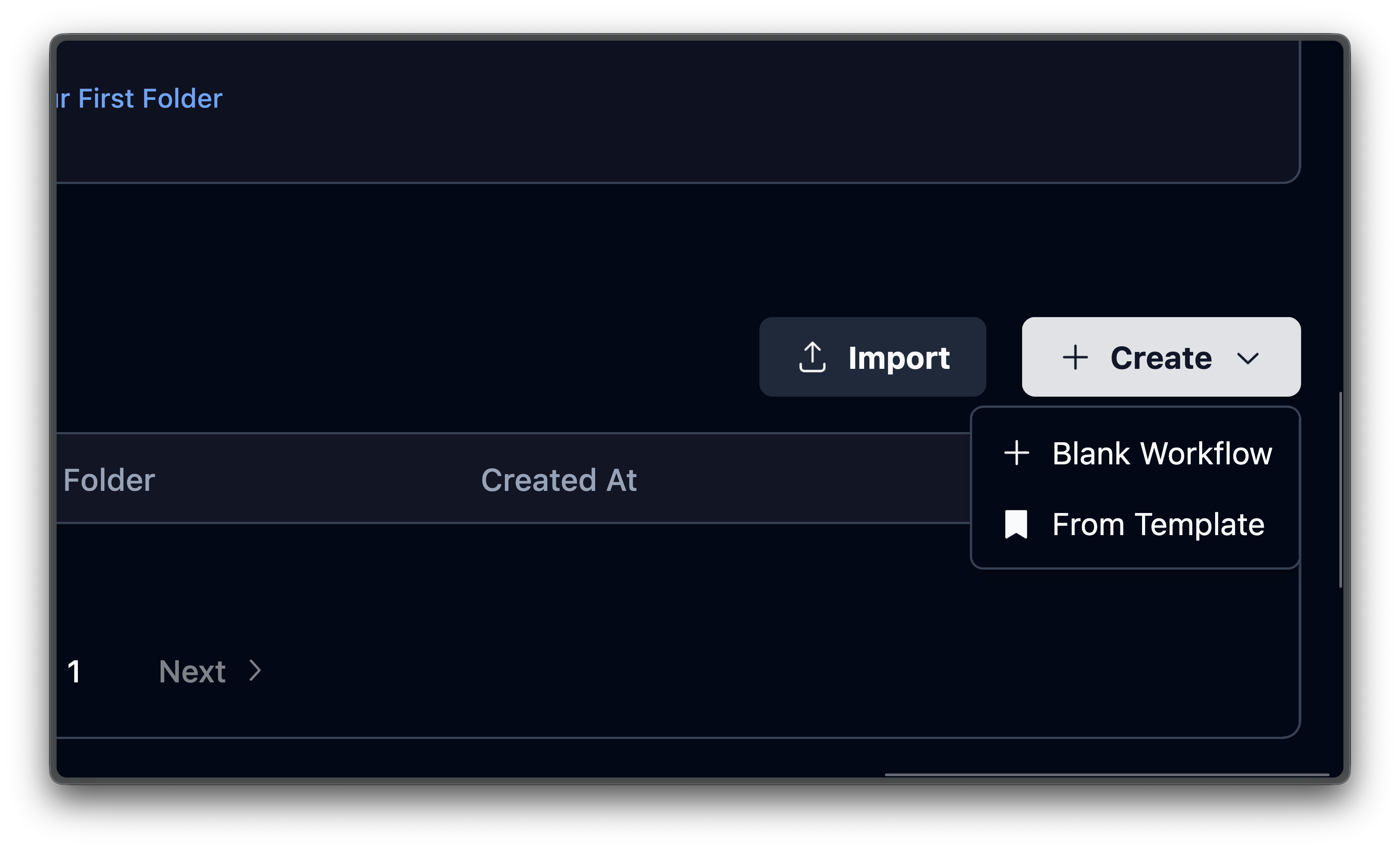
2
Add a Browser Task block
Hover over the + button on the edge below the start node and select Add Block. A searchable block library opens on the right. Find and select Browser Task Block.The block appears on the canvas with a configuration panel on the right. Fill in: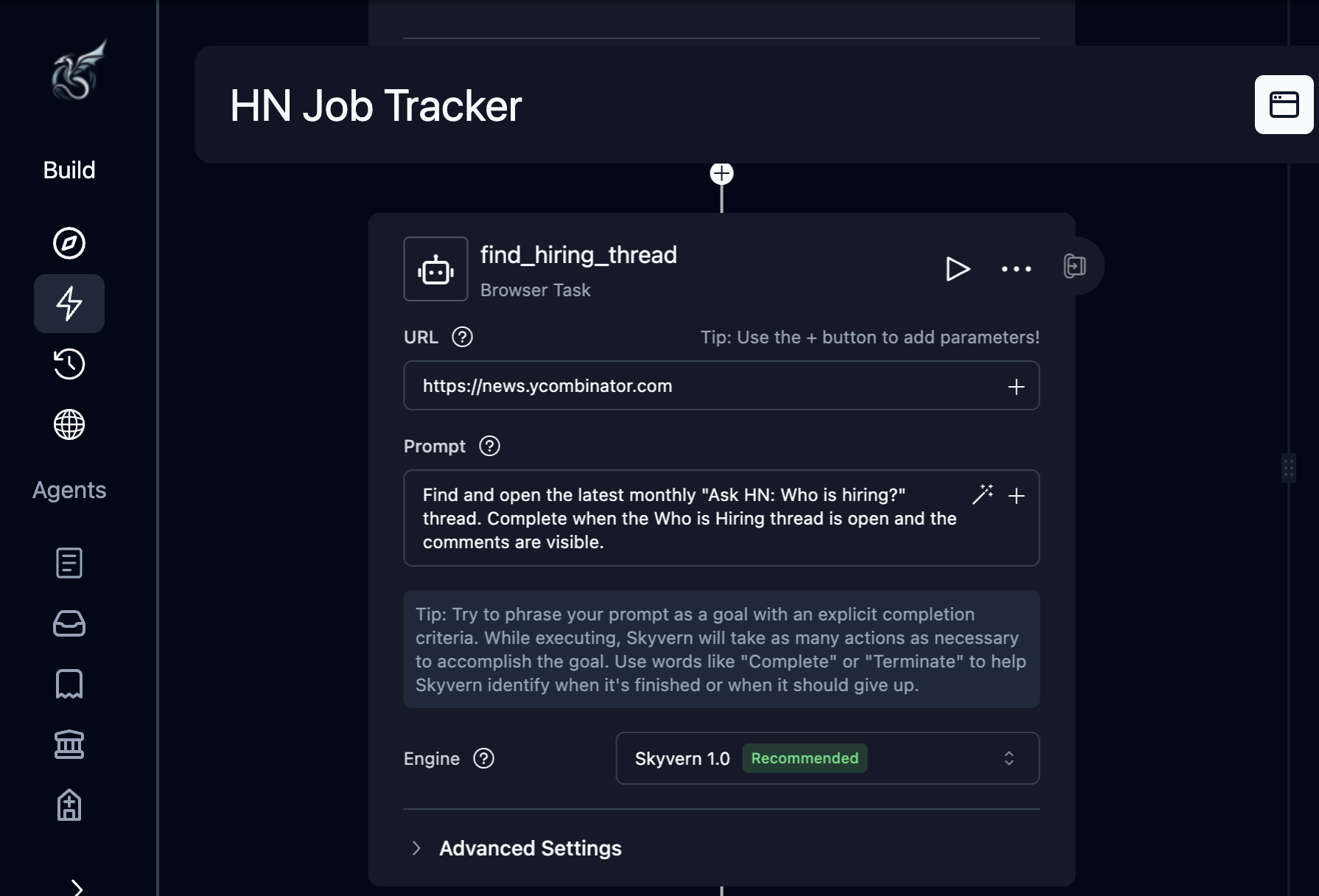
The Browser Task block uses AI to navigate the page and accomplish the goal described in your prompt. Include your success criteria directly in the prompt so the AI knows when it’s done.
Why Browser Task instead of Go to URL?
Why Browser Task instead of Go to URL?
The URL for the latest hiring thread changes every month. The Browser Task block uses AI to find the right link on the page. Use Go to URL when you know the exact destination URL upfront.
3
Add an Extraction block
Hover over the + on the edge after The schema tells Skyvern exactly what structure to return. Without it, the AI picks its own format. You can also click Generate with AI next to the schema field to have Skyvern suggest a schema based on your extraction goal.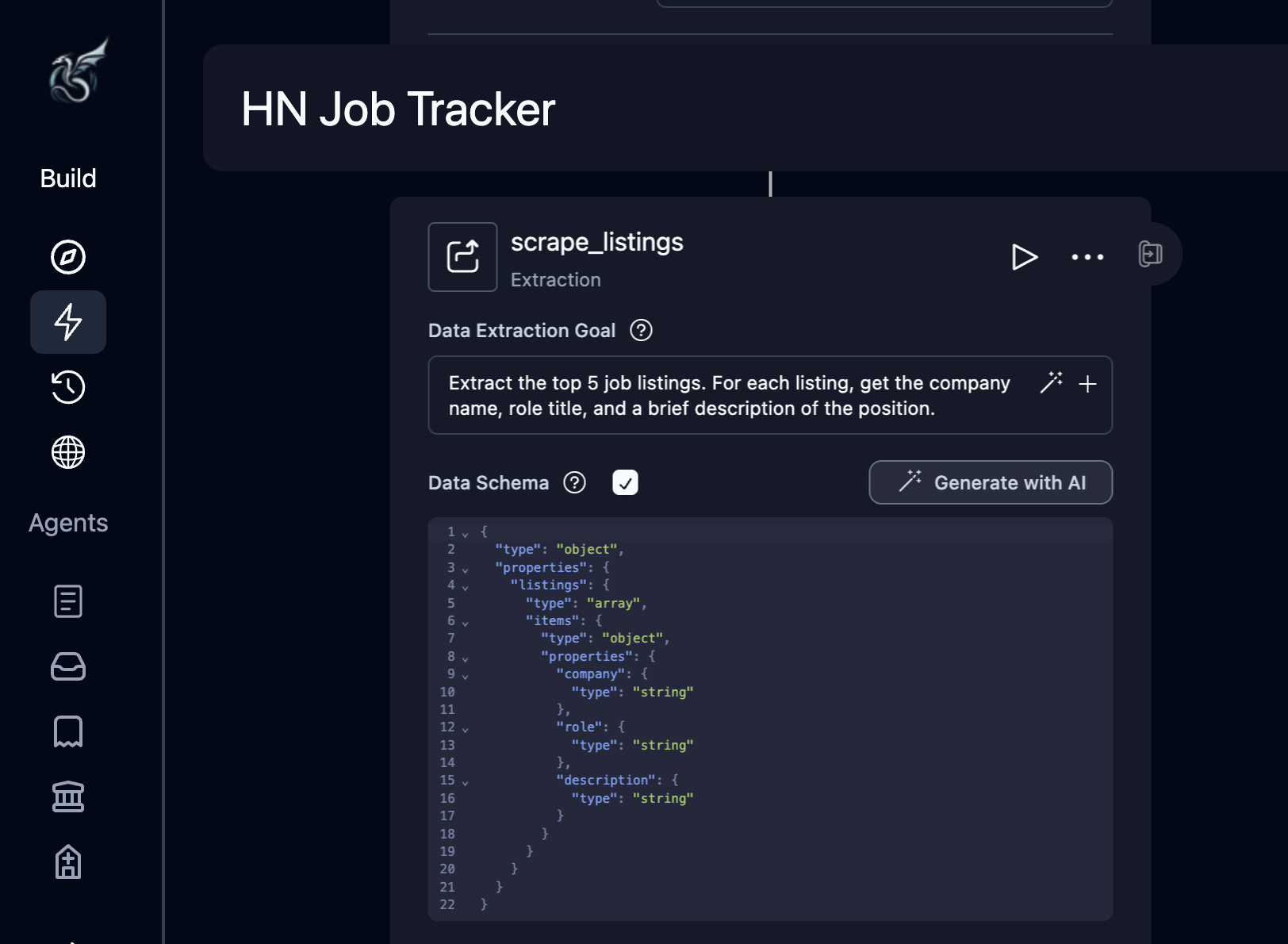
find_hiring_thread, select Add Block, then choose Extraction Block.Configure:Now enable the Data Schema checkbox to reveal the JSON editor, and paste:
4
Add a Loop with a Text Prompt inside
Hover over the + after The Text Prompt block sends text to the LLM without opening a browser. It processes data only. Each iteration produces a one-line summary of that job listing.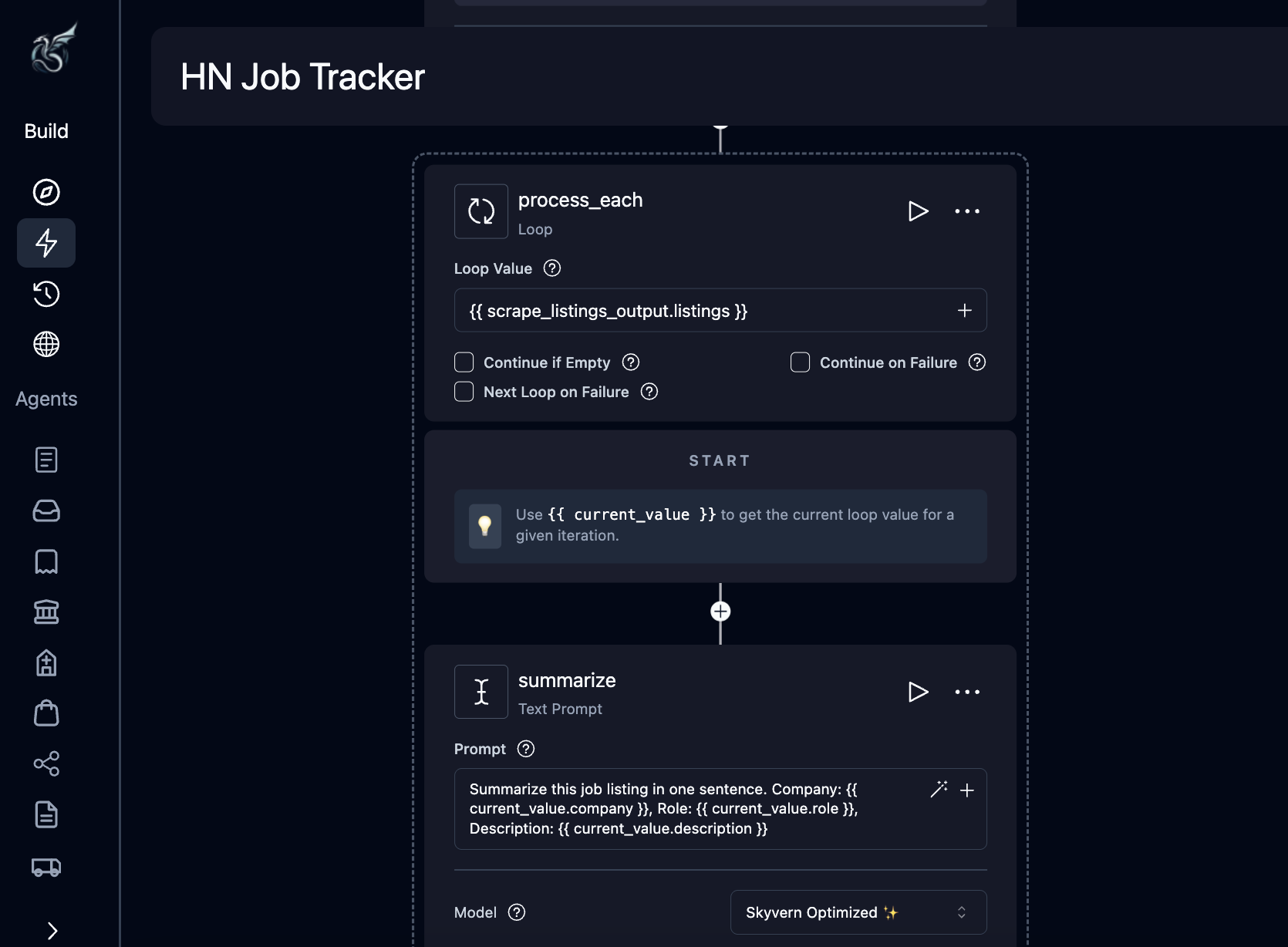
scrape_listings, select Add Block, then choose Loop Block.Configure the loop:This iterates over the 5 listings extracted in the previous step. Now add a block inside the loop. Hover over the + inside the loop body, select Add Block, and choose Text Prompt Block.Configure the Text Prompt:
Enable the Data Schema checkbox and paste:
What are current_value and current_index?
What are current_value and current_index?
Inside a loop, two reserved variables are available:
{{ current_value }}: the current item from the list being iterated{{ current_index }}: the item’s position, starting from 0
{{ current_value.company }} gives you the company name for the current listing.5
Add a Send Email block
Hover over the + on the edge after the loop (back on the main flow, not inside it), select Add Block, then choose Send Email Block.Configure:
The
{{ process_each_output }} reference pulls in the collected summaries from every loop iteration.6
Save and run
Click Save, then click Run in the top right. A parameters page opens where you can review and confirm the agent’s settings. Click Run Agent to start execution.The live execution view opens. Watch as Skyvern navigates Hacker News, extracts listings, summarizes each one, and sends your email.
What you built
Five blocks, three categories, zero code. You can now re-run this agent anytime, tweak the extraction schema to pull different fields, swap the email for an HTTP Request to post to Slack, or add a Conditional block to only email when listings match certain criteria.Editor reference
Layout
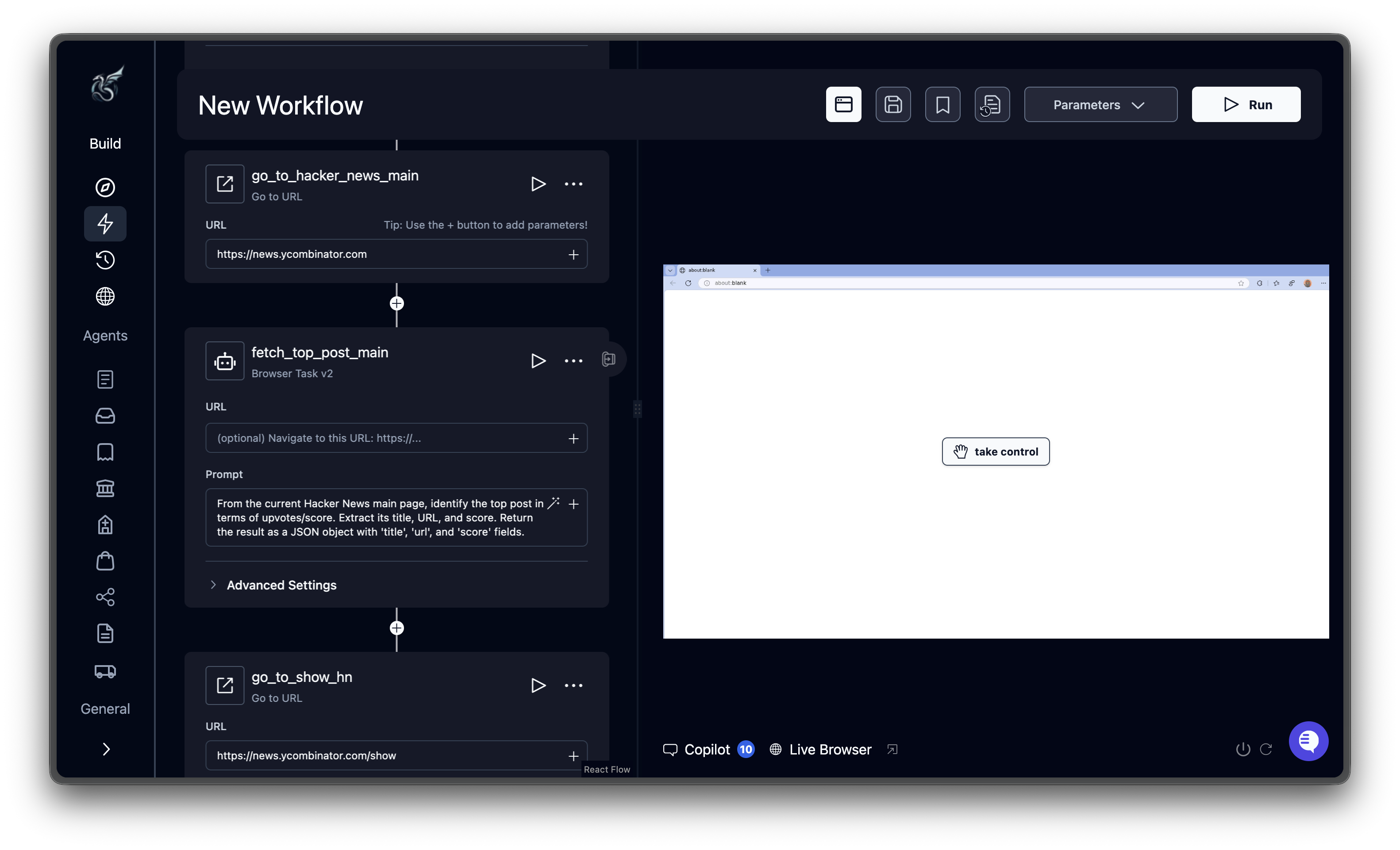
Adding blocks
Hover over the + button on any edge (the connecting line between blocks) to reveal the menu. Select Add Block to open the block library, a searchable list of all available block types. Click a block to insert it at that position. The menu also offers Record task (record actions in a live browser to generate blocks) and Upload SOP (upload a PDF procedure to auto-generate an agent). When you create a blank agent, hover over the + on the start edge to add your first block.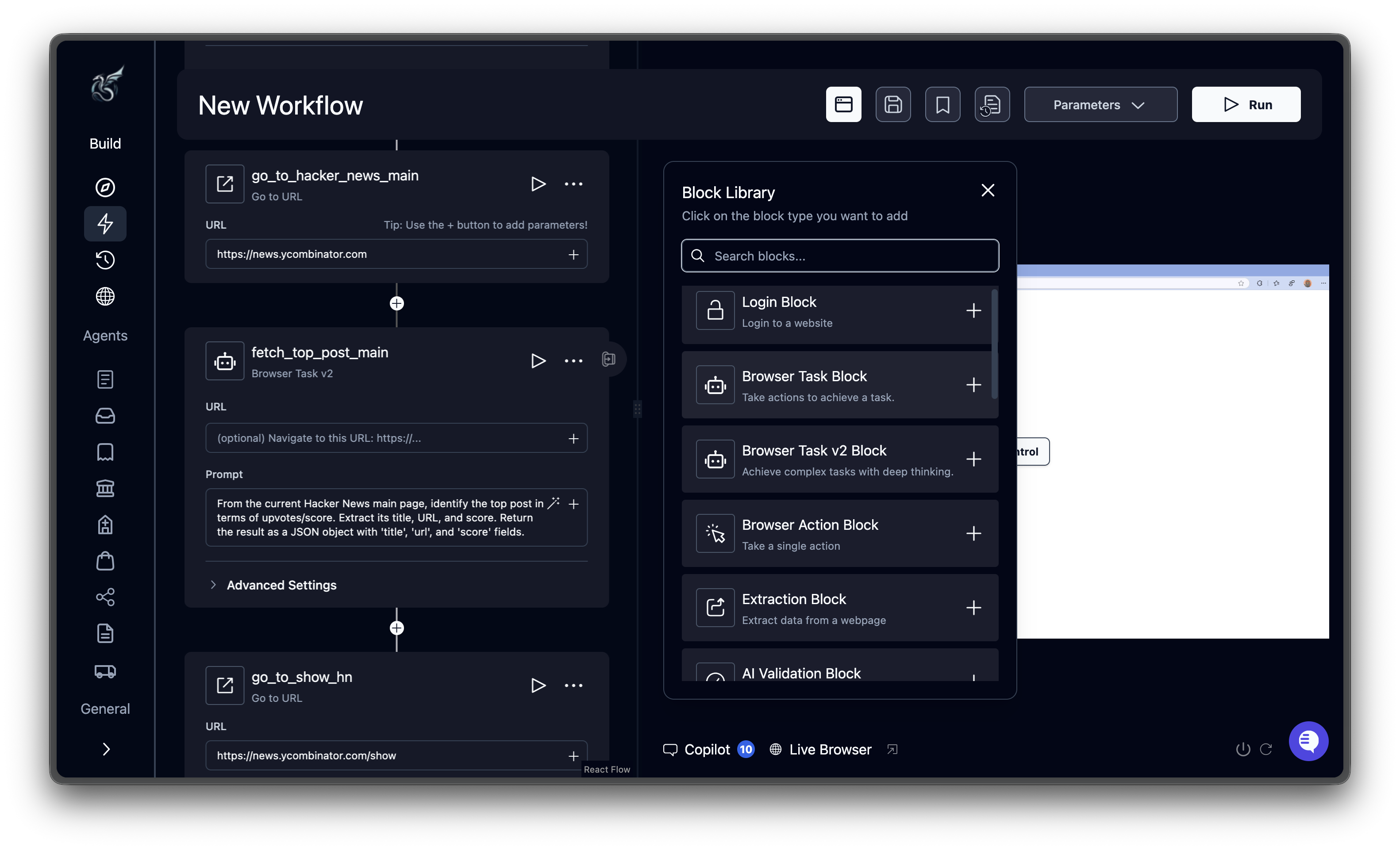
Configuring blocks
Click any block on the canvas to open its configuration panel on the right. Each block has a Label field (which determines its output variable name) and block-specific settings. Browser-based blocks share additional fields like URL, Engine, and Max Retries. See Block Reference for the full list of fields on each block type.Connecting and reordering blocks
Blocks auto-connect when you insert them via the + button. They execute top to bottom in the order shown on the canvas. Conditional blocks create branches. Each branch connects to a different sequence of blocks and merges back at a common point. Loop blocks contain child blocks that repeat for each item in the loop’s list. While Loop blocks contain child blocks that repeat while their condition remains true. To reorder blocks, delete the block you want to move and re-add it at the desired position using the + button.Deleting blocks
Click the three-dot menu on a block’s header and select Delete Block. Downstream blocks reconnect to the previous block automatically.Saving
The Run button also saves before starting execution.Header bar actions
What’s next
Block Reference
Configuration fields for every block type
Add Parameters
Pass dynamic values into your agents
Run Your Agent
Execute agents and track results
Schedule This Agent
Set up recurring cron-based execution