

- Run the same automation repeatedly with the same account (daily reports, scheduled data extraction)
- Want to skip login steps that consume credits and time
- Need multiple agents to share the same authenticated state
Looking to manage profiles from code? See the API & SDK guide instead.
How profiles are created
Browser profiles are created automatically when you test a password credential with the Save browser session option enabled. There is no standalone “create profile” button; the profile is a byproduct of a successful login test.Creating a profile from a credential
1
Go to the Credentials page
Click Credentials in the left sidebar under General.
2
Create or edit a password credential
Click + Add → Password to create a new credential, or click the pencil icon on an existing one. Enter the username and password. See Password Credentials for details.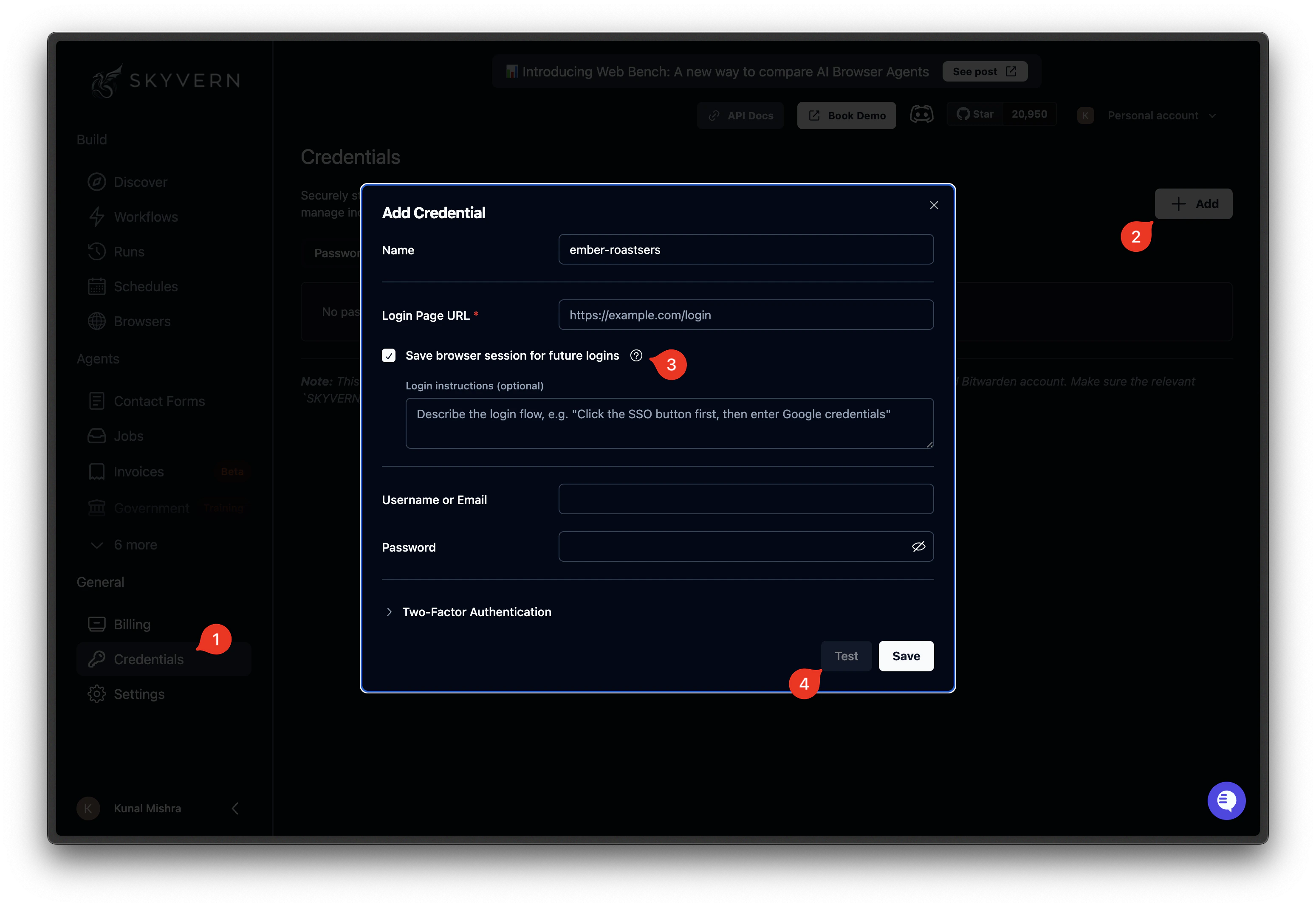
3
Enable Save browser session
Below the password fields, enable the Save browser session option. Enter the login URL for the site (e.g.,
https://app.example.com/login). You can also add optional context to help the AI navigate the login flow.4
Test the credential
Click Test. Skyvern opens a browser, navigates to the login URL, signs in with the credential, and, if the login succeeds, saves the browser state as a profile. The profile is linked to this credential automatically.
5
Confirm the profile was saved
When the test completes, the credential row shows a saved-profile badge with the site hostname. This means the browser profile is ready to use.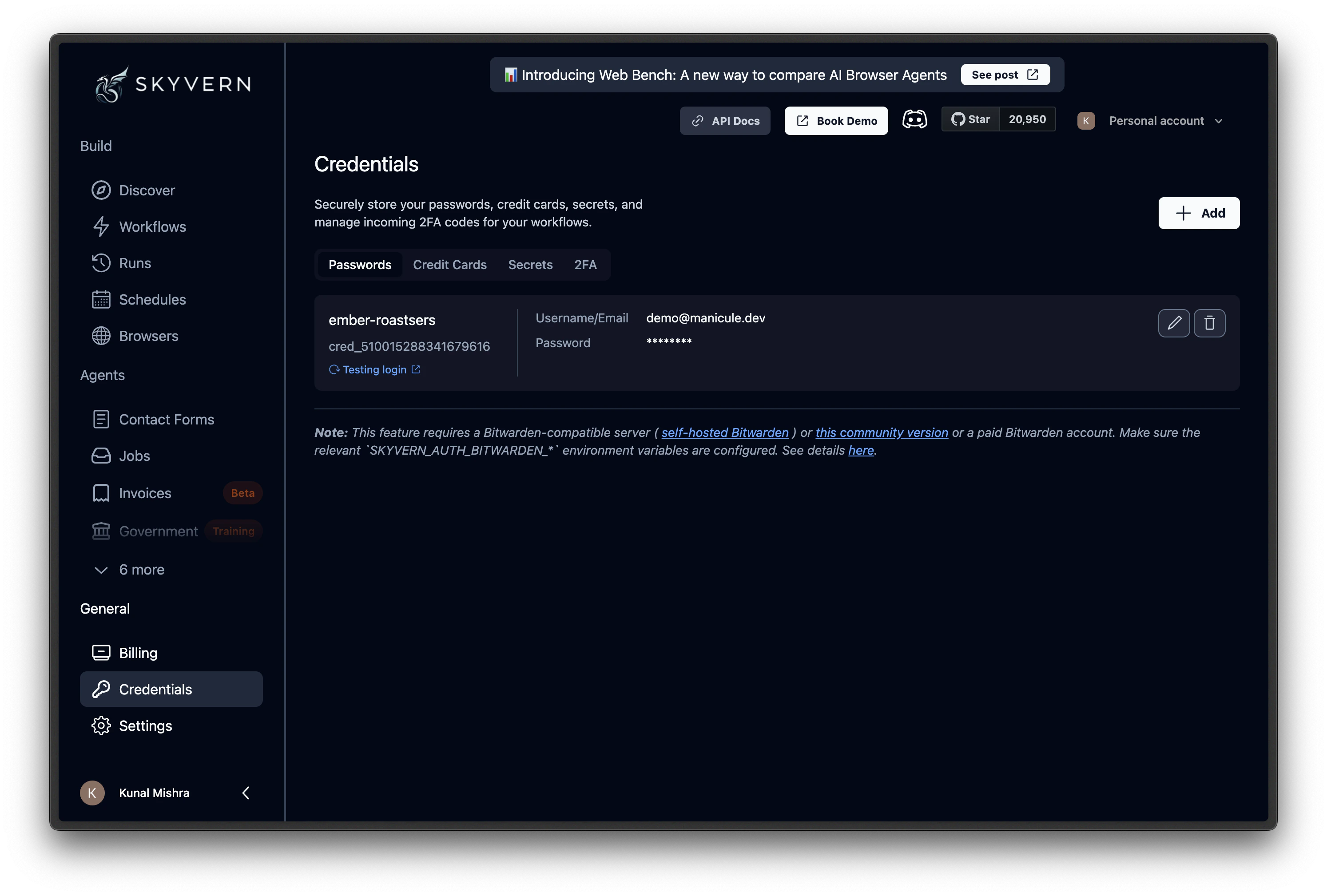
When to refresh profiles
Cookies and session tokens expire. A profile that worked last week may not work today if the site’s authentication tokens have a short lifespan. Signs a profile needs refreshing:- Tasks that use the profile start failing with login-related errors
- The browser loads a login page instead of the authenticated dashboard
- The site forces re-authentication after a set period
Sessions vs profiles
What’s next
Browser Sessions
Keep a browser open across multiple tasks
Password Credentials
Store the login details that profiles are built from
Browser Profiles (API)
Create and manage profiles programmatically