

Creating a credit card credential
1
Open the Add dialog
Click + Add → Credit Card from the Credentials page.
2
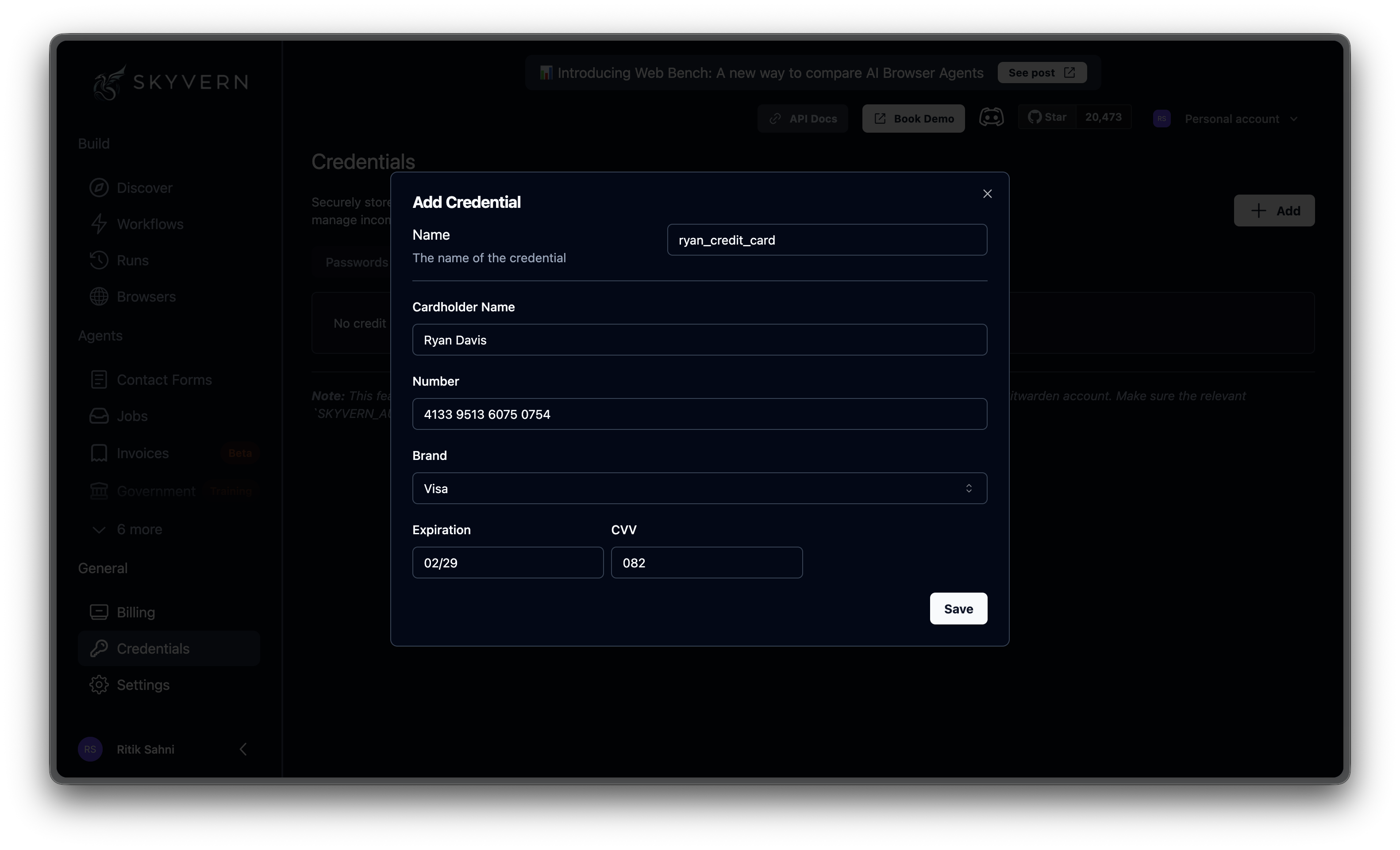
Fill in the card details
Provide all required fields:
3
Save
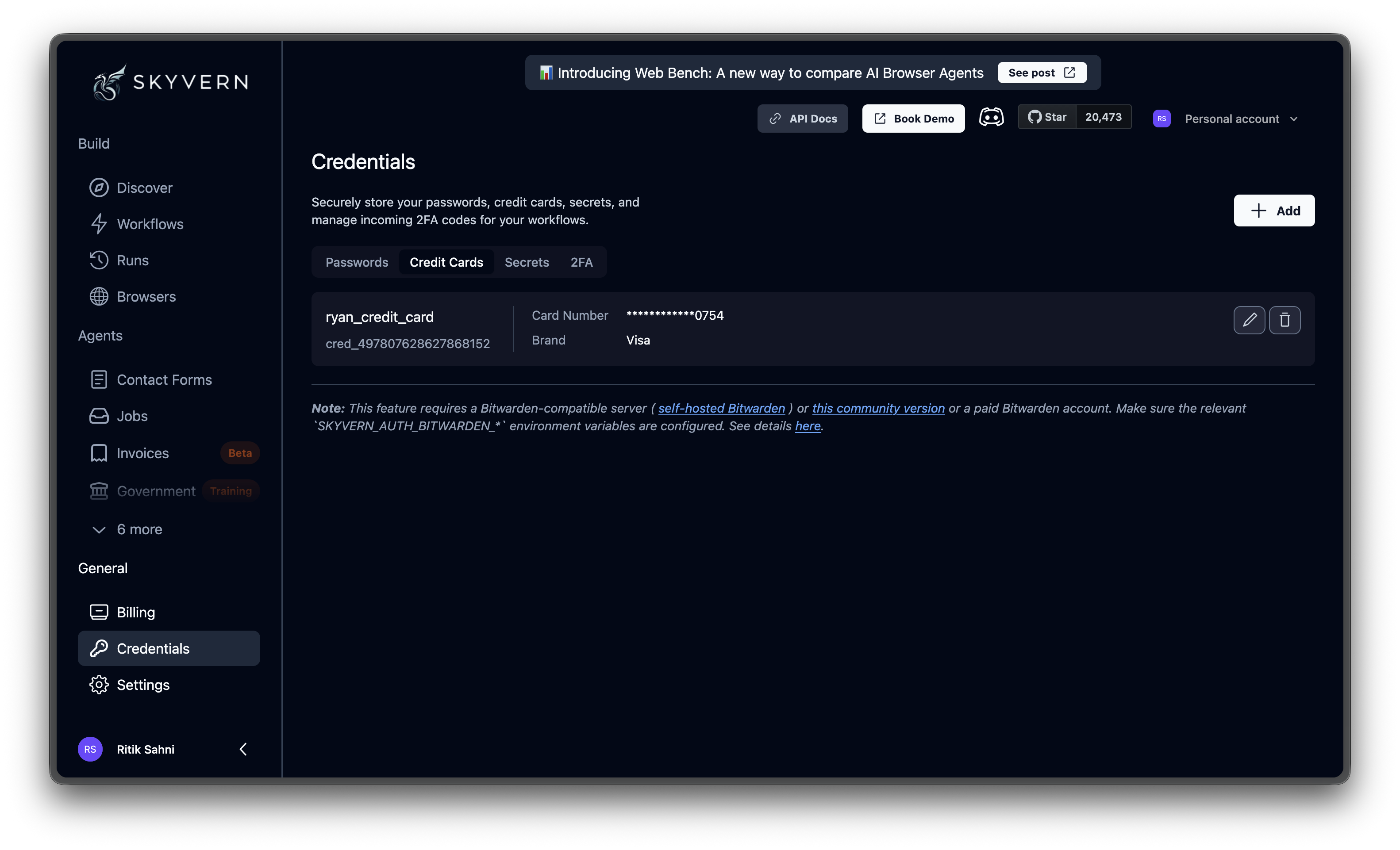
Click Save. After saving, the card number is masked and only the last four digits are ever shown again.
Using credit cards in agents
Credit cards work with Browser Task and Browser Action blocks that interact with checkout pages. The AI automatically recognizes standard checkout forms and fills card number, name, expiration, and CVV fields with the stored details. No field mapping is required. For agents that need different cards at runtime, add a Credential parameter (type:credential_id) in the agent editor. When someone runs the agent, they select which card to use from a dropdown. This lets the same checkout agent work with different payment methods.
If you use 1Password as a credential provider, credit cards require a custom text field named “Expire Date”, “Expiry Date”, or “Expiration Date” in
MM/YYYY or MM/YY format. 1Password does not expose the native expiration field through its API, so Skyvern reads this custom text field instead. See External Providers for full setup details.Editing and deleting
To edit a credential, click the pencil icon on its row. For security, saved card details are never retrieved, so you must re-enter all fields when updating.
Password Credentials
Store login details with optional 2FA
External Providers
Connect Bitwarden, 1Password, Azure Key Vault, or a custom API
Credentials Overview
Security model, quick start, and all credential types